
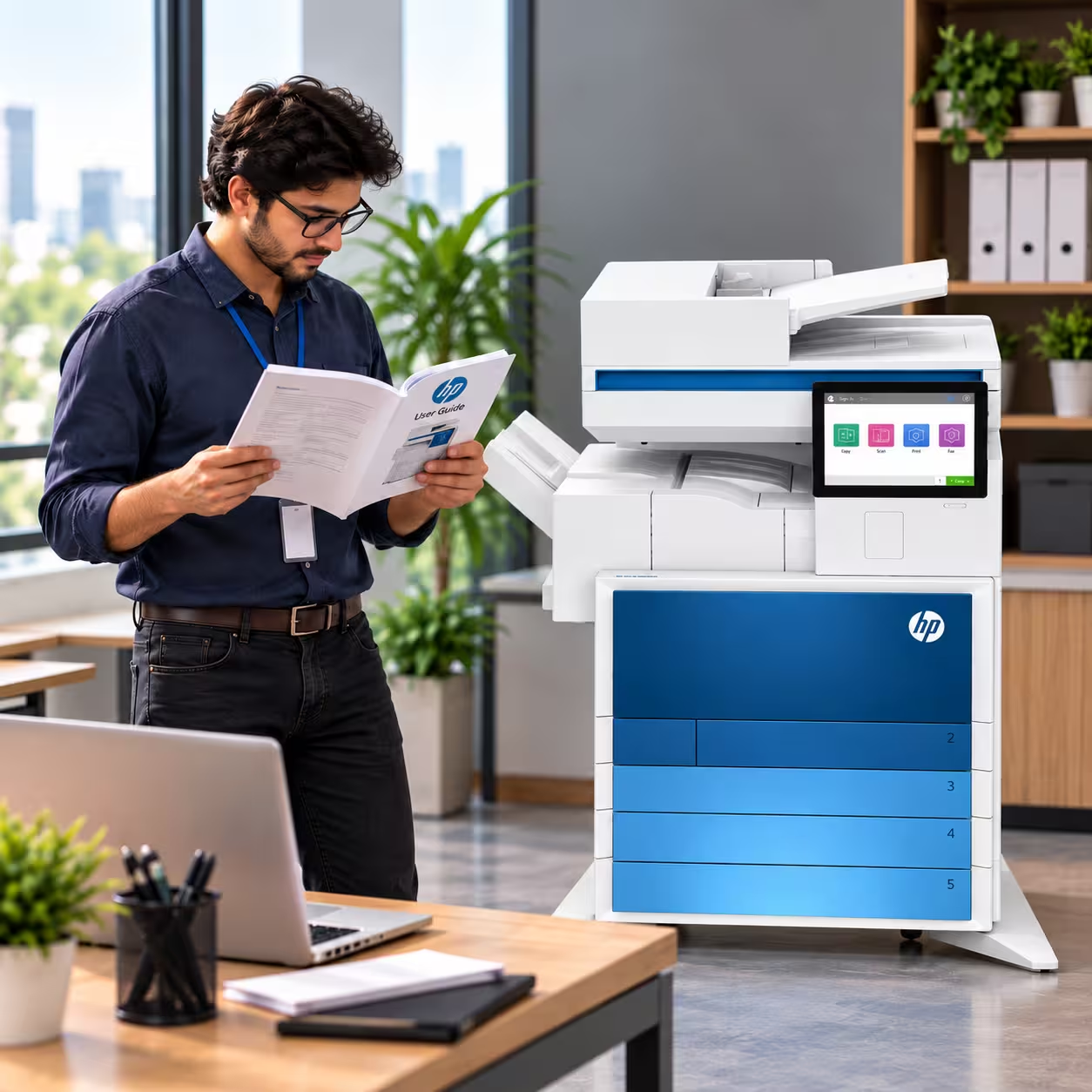
1. Set Up Your HP Printer
Before connecting the printer, remove all packaging material, tapes and protective covers.
Connect the power cable and switch on the printer.
For inkjet or Smart Tank models, install the cartridges or fill the ink tanks according to the instructions supplied with your specific model.
Load plain paper into the input tray. Adjust the paper guides so they touch the edges of the paper without pressing too tightly.
If your printer asks you to align the printheads or cartridges, complete the alignment process before regular printing. Some HP models print an alignment page automatically during first-time setup.
2. Connect the HP Printer to Wi-Fi
Wi-Fi is usually the easiest option when several people need to use the same printer.
HP now uses the HP app for printer setup on supported devices. HP Smart is still available for some devices where the new app has not yet been introduced.
- Connect your computer or mobile phone to your Wi-Fi network.
- Keep the printer close to the Wi-Fi router during setup.
- Turn on Bluetooth on your phone if you are using the mobile setup process.
- Download the HP app from HP's official setup page.
- Open the app and select Add Printer or Set Up a New Printer.
- Select your HP printer when it appears.
- Follow the instructions to connect the printer to your Wi-Fi network.
- Complete the remaining setup instructions shown in the app.
The HP app also installs the required printer software and drivers on supported systems.
If you changed your router or Wi-Fi password and the printer no longer connects, you may need to restore the printer's Wi-Fi setup mode and add it again through the HP app.
3. How to Print from a Computer
For normal office documents, check that the paper size and paper type selected in the print settings match the paper loaded in the printer. Incorrect settings can affect print quality and paper handling.
4. How to Print from Your Phone
You can also print from a smartphone or tablet using the HP app.
- Open the HP app.
- Select your HP printer.
- Choose the option to print documents or photos.
- Select the file or image.
- Check the paper size and print settings.
- Select the number of copies.
- Tap Print.
Your phone and printer normally need to be connected to the same Wi-Fi network.
For some situations, HP printers also support Wi-Fi Direct, which allows a compatible phone or computer to connect directly to the printer without using the normal office Wi-Fi network.
5. How to Scan a Document
If your HP printer has a scanner, you can scan documents and photos to your computer or phone.
- Open the scanner lid.
- Place the document face down on the scanner glass.
- Align it with the marked corner or guide.
- Close the lid.
- Open the HP app.
- Select your printer and choose Scan.
- Select Scanner Glass as the source.
- Start the scan.
- Adjust the document edges if required.
- Save or share the scanned file.
For several pages, an HP printer with an Automatic Document Feeder (ADF) can be more convenient. Load the pages according to the markings on the feeder and select Document Feeder in the scanning options.
You can also save multiple scanned pages as a single PDF on supported HP app versions.
6. How to Make a Copy
For a quick photocopy, you do not need to use a computer.
When copying photos, use the scanner glass rather than the ADF, as HP advises that some ADF mechanisms can damage photos.
7. What to Check When the Print Quality Is Poor
If the print is faded, streaked, blurry or missing some colours, check these points first:
HP recommends genuine HP ink for its inkjet and Smart Tank printers because ink quality can affect print results and printer reliability.
Avoid repeatedly cleaning the printhead without checking the result. Cleaning uses ink, and HP recommends allowing time between deeper cleaning cycles when a printhead is heavily clogged.
8. What to Do When the HP Printer Is Not Connecting
If the printer suddenly disappears from your computer or phone:
For a new setup, keeping the printer close to the router can also make the initial connection easier.
9. When Basic Troubleshooting Is Not Enough
A printer that repeatedly jams, produces poor-quality prints, shows error messages, loses network connectivity or requires frequent cartridge replacement may need more than a software reset.
For an office printer, regular maintenance and timely technical support can prevent small issues from becoming work interruptions.
If you need HP printer sales, rental, servicing, AMC or technical support in the UAE, Printone provides printer solutions for businesses across the UAE, including equipment supply and printer service support.
Need help with your HP printer? Talk to the Printone team for printer sales, rental and service support in the UAE.